
Get your API Key
Create a personal API key in the GIS.PH dashboard. Use it when you call https://api.gis.ph, and in the SDKs, CLI, and components.
The key looks like gis_sk_…. Send it as:
Authorization: Bearer gis_sk_…How to call the API is in Authentication. This page is only the dashboard screens.
New accounts use an invite. For access, write to [email protected].
1. Sign in
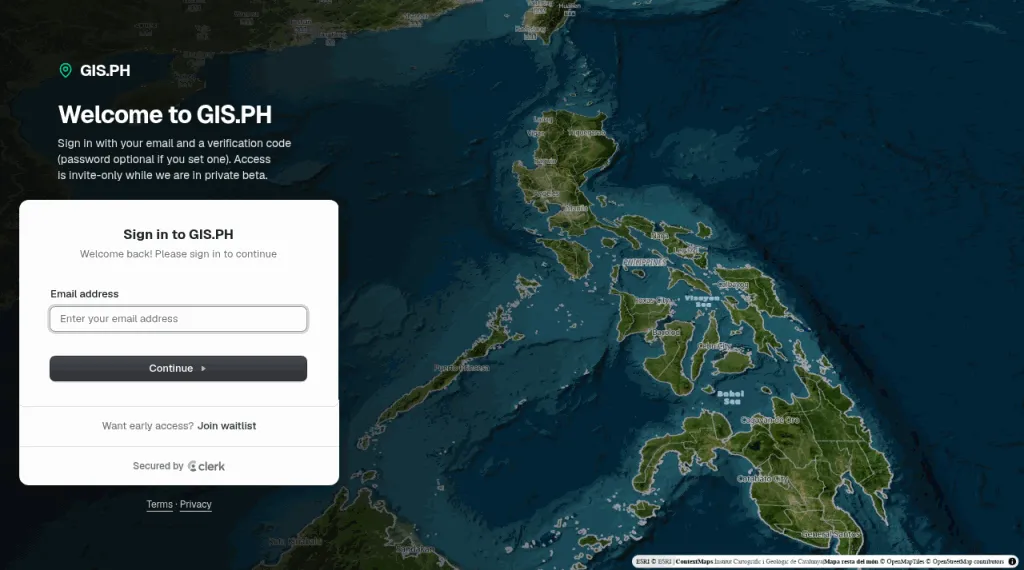
Section titled “1. Sign in”Open https://dashboard.gis.ph/sign-in and sign in with the email on your invite. On Sign in to GIS.PH, enter your Email address, click Continue, then enter the verification code (or your password, if you set one).
2. Open API Keys
Section titled “2. Open API Keys”After sign-in, the dashboard opens Home.
If you have no keys yet, Home shows Create your first API Key. That link goes to API Keys.
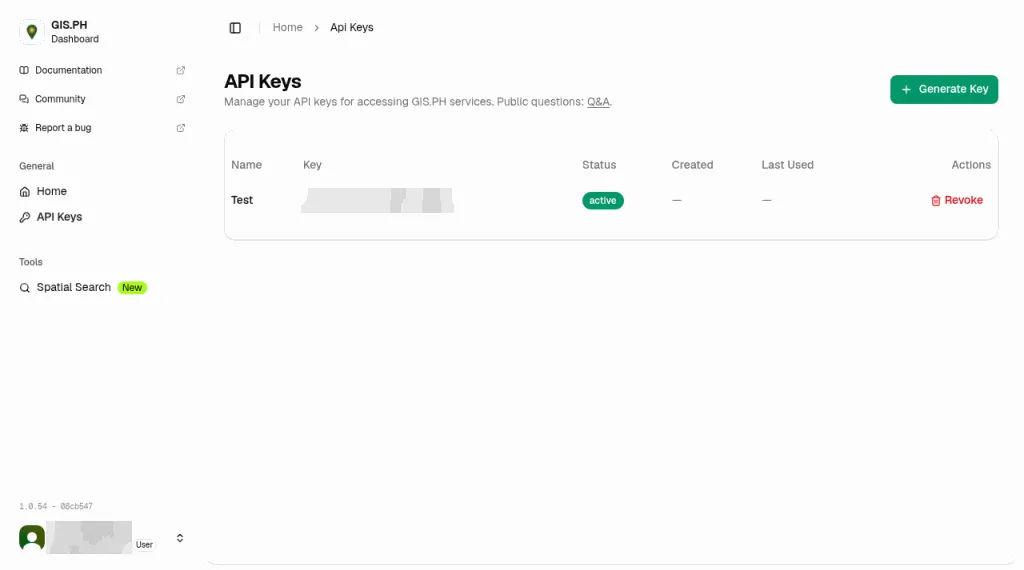
If you already have keys, open API Keys in the sidebar, or go to https://dashboard.gis.ph/api-keys.
3. Generate a key
Section titled “3. Generate a key”On API Keys, click Generate Key.
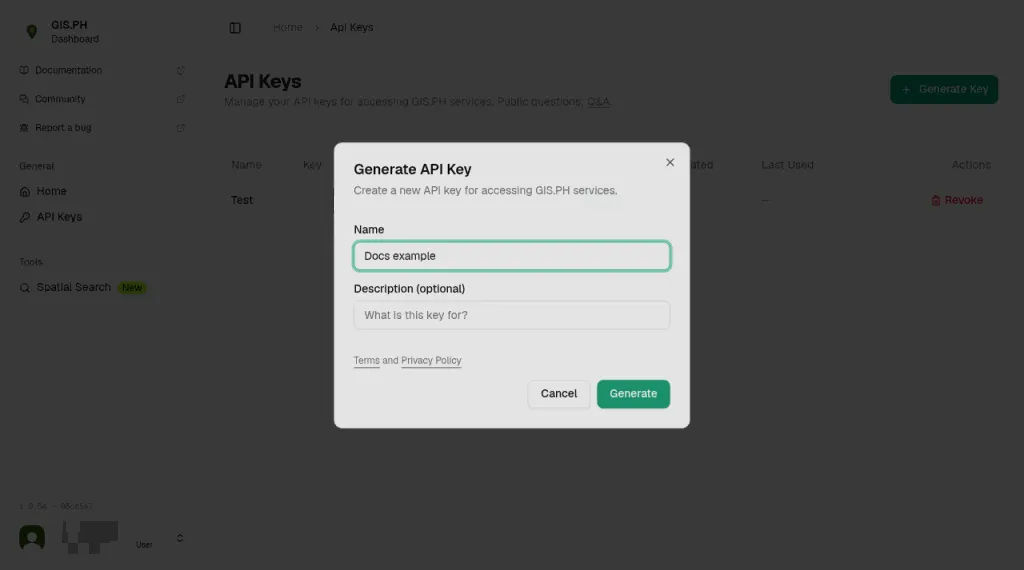
In Generate API Key:
- Enter a Name (required), for example
Docs example. - Enter a Description (optional) if you want one, for example what the key is for.
- Click Generate.
The dashboard creates a live key for your account.
4. Copy the key once
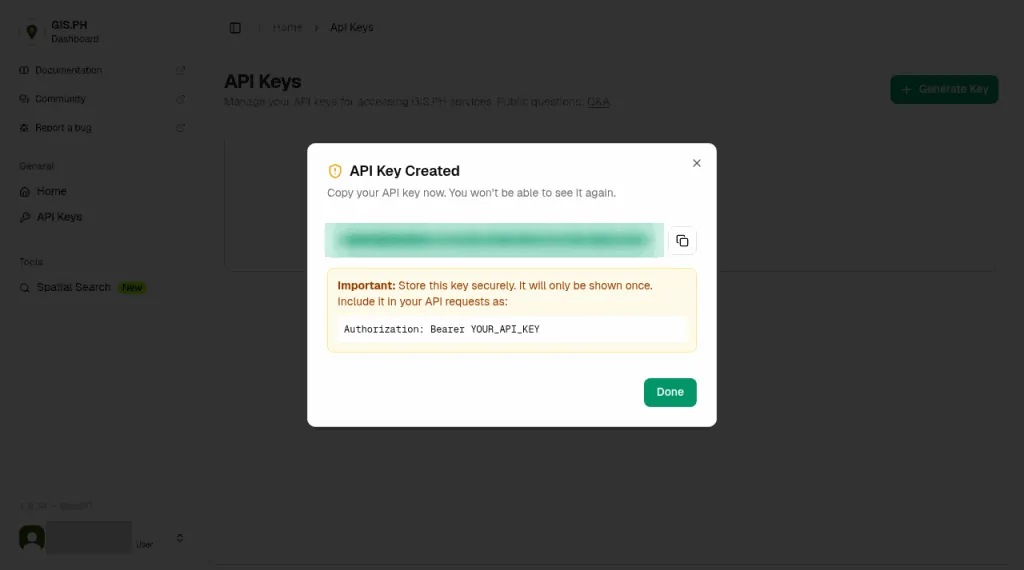
Section titled “4. Copy the key once”API Key Created shows the full key one time: Copy your API key now. You won’t be able to see it again. Use the copy button next to the key and store it somewhere safe. The dialog also reminds you to include it in your API requests as Authorization: Bearer YOUR_API_KEY. Click Done when you have saved it. Closing the dialog hides the secret. The API Keys table then shows the Name, a Key prefix, and the Status. It does not show the full key again.
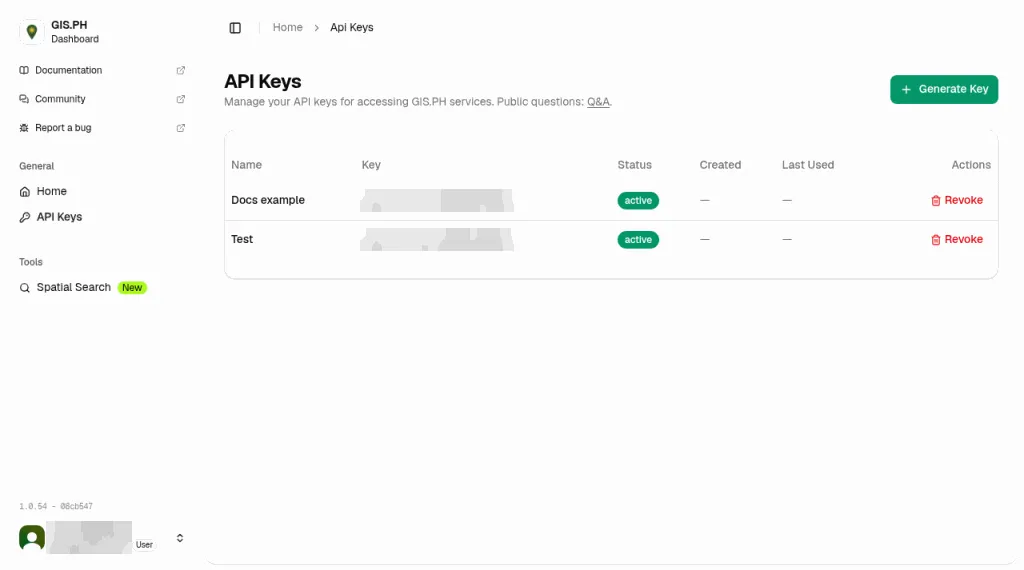
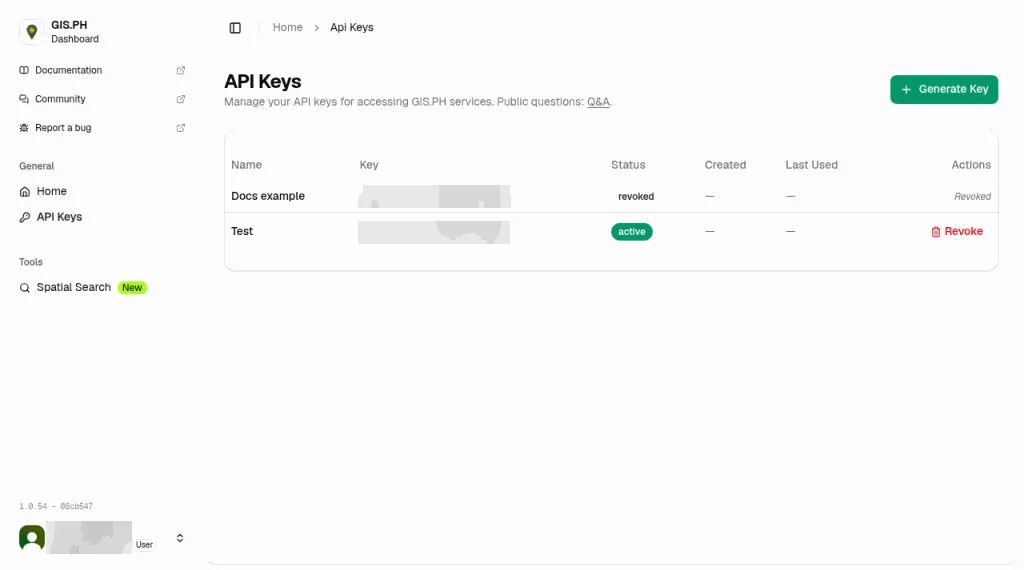
If a key leaks, open the same page and click Revoke on that row. Revoked keys stop working. The row stays in the table with the status revoked.
Use the key
Section titled “Use the key”Keep the key in an environment variable. Do not commit it, and do not put a live key in a public frontend.
curl -H "Authorization: Bearer gis_sk_…" \ "https://api.gis.ph/v1/provinces?format=geojson"Scopes, rate limits, and the key HTTP API are in Managing API Keys.